Setting up a till
The till screen must never be "a tab somewhere in Chrome." Two ways to give it its own dedicated, chromeless window with its own taskbar/dock icon:
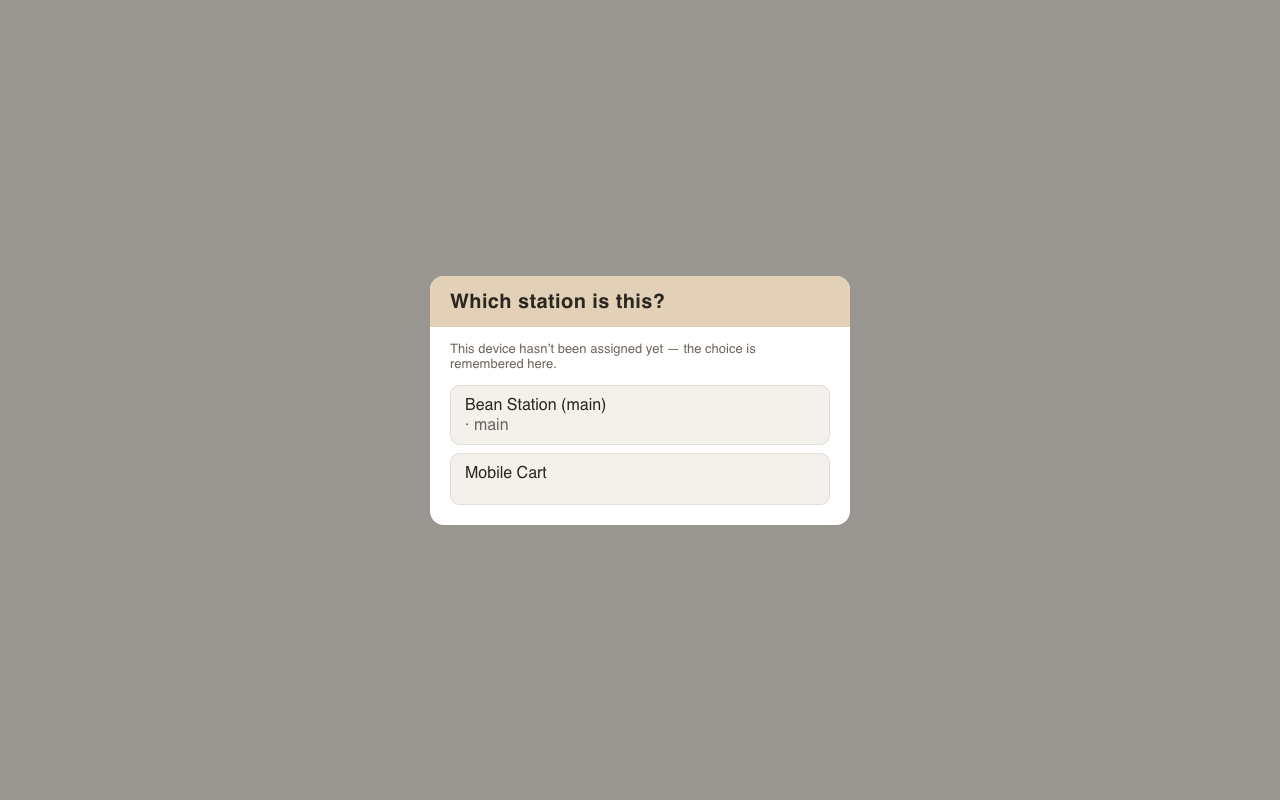
On first launch a browser picks which station it is — the choice is remembered on that machine (changeable later from the sign-in screen's System menu):
1. App-mode shortcut (recommended for till machines)
Launch Chrome in app mode pointed at the POS server. No tabs, no address bar, separate window and taskbar entry. Works over plain LAN HTTP — no certificates needed.
Windows — create a shortcut with this target (adjust the server address):
"C:\Program Files\Google\Chrome\Application\chrome.exe" --app=http://pos-server:5173 --start-maximized
For a locked-down fullscreen terminal (staff can't escape to the desktop or other sites), use kiosk mode instead:
"C:\Program Files\Google\Chrome\Application\chrome.exe" --kiosk http://pos-server:5173
Put the shortcut in the Startup folder (shell:startup) and the till boots straight into
the POS.
macOS (for testing on the dev machine):
open -na "Google Chrome" --args --app=http://localhost:5173
For one-click access, a minimal .app bundle wraps that command (Tai's Desktop has one:
"Roasterie POS.app" — it also auto-starts the dev server if it isn't running). The bundle is
just Contents/Info.plist + Contents/MacOS/launcher (a shell script) +
Contents/Resources/icon.icns built from apps/web/public/icons/.
2. Install as an app (PWA)
The app ships a web-app manifest, so Chrome can install it: menu ⋮ → Cast, save and share → Install page as app (or the install icon in the address bar). It gets its own icon and opens in a standalone window from then on.
Caveat: Chrome only offers installation on a secure context — localhost or HTTPS. On
till machines reaching the server over plain LAN HTTP, use the app-mode shortcut above (same
result, no ceremony). If we later serve the app over LAN HTTPS (e.g. a mkcert certificate on
the server), install becomes available everywhere.
Mobile cart (future)
The cart travels with its own hotspot, which carries everything: the till (a laptop/tablet browser reaching the shop server over Tailscale) and the card reader (a Stripe smart reader — S710 with LTE, or WisePOS E on the hotspot). Same POS, same data, same payment code path as the shop counter; the hotspot is the cart's single piece of connectivity.
Silent printing (no dialog) — Chrome kiosk-printing
For receipts/reports that should fire straight to the printer without asking, launch the till with Chrome's kiosk-printing flag and set the target printer as the OS default:
chrome --app=http://pos-server:3001 --kiosk-printing
Every print the app triggers then goes immediately to the default printer, no dialog. (Works with any OS-installed printer — laser for full pages; thermal receipt printers with a driver work too, until the ESC/POS bridge lands.)
The customer display (second monitor)
The old "virtual pole display", reborn: open #display in its own window and drag it
to the customer-facing monitor —
chrome --app=http://pos-server:3001/#display
It mirrors the till live (same machine, zero configuration): idle = logo + welcome note; during a sale = items, modifiers, discounts, running total; on completion = thank-you + change due. Styling follows the receipt settings (logo, bottom note).