How the sale screen works
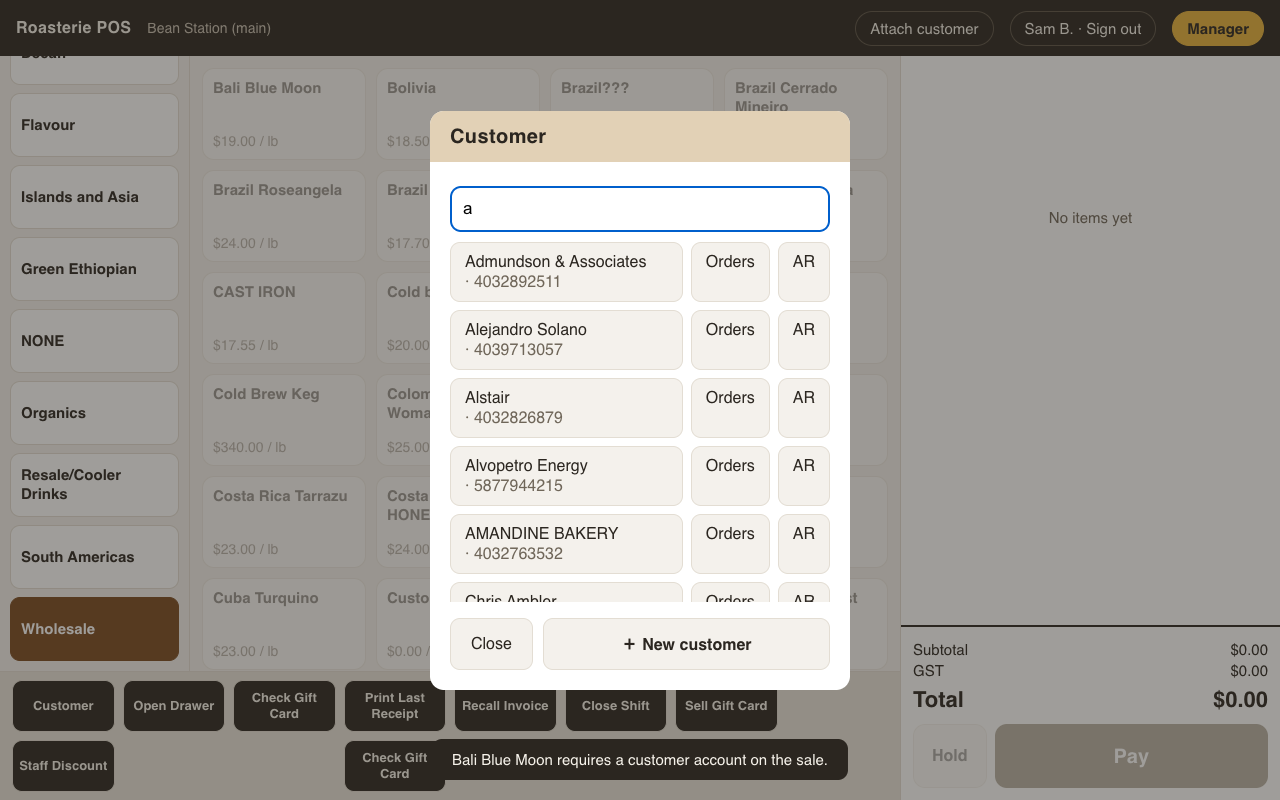
The screen is the same everywhere, always: categories down the left, product buttons in the middle, the ticket on the right. What changes per station is only which categories and products are visible (the menu layout), never the shape of the screen.
Ringing things in
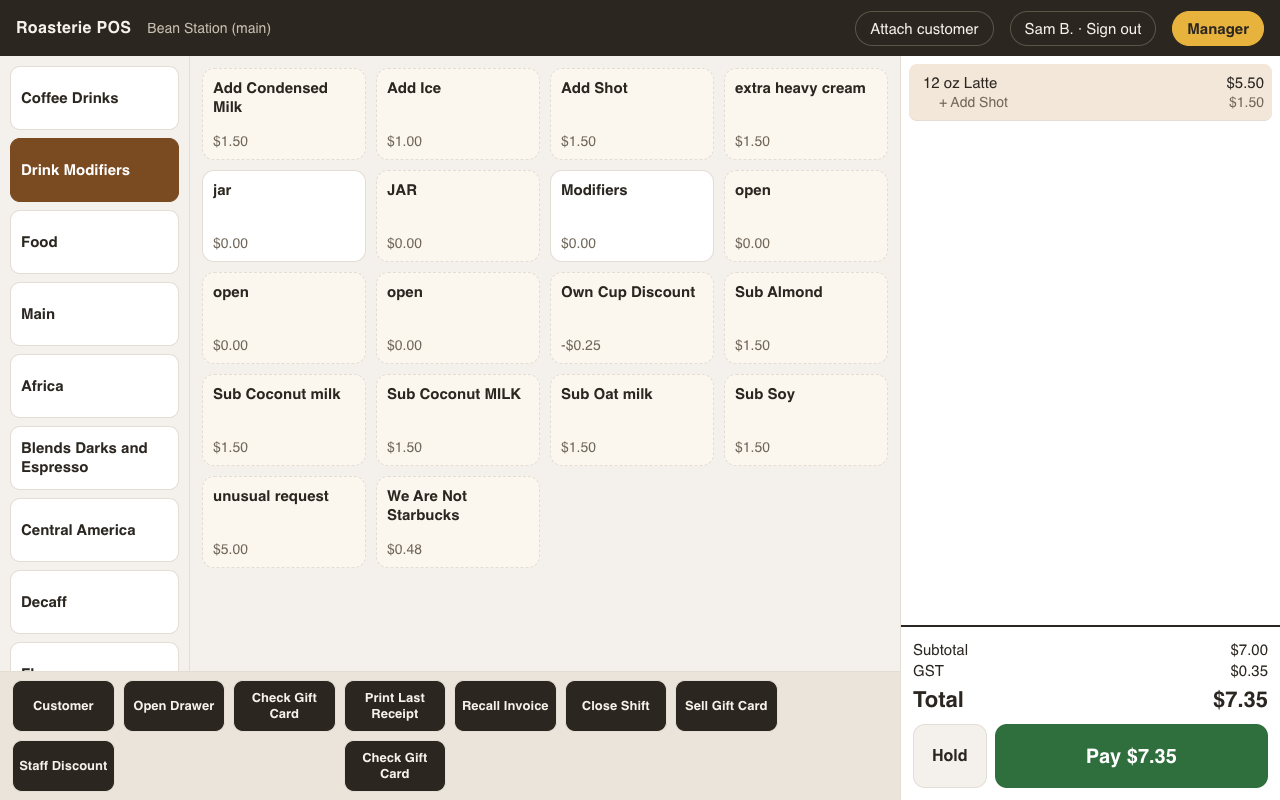
- Tap a category on the left → its products fill the 4-wide grid.
- Tap a drink or food item → it lands on the ticket. Every size is its own button (8 oz / 12 oz / 16 oz are three buttons) — that's what makes the counter fast.
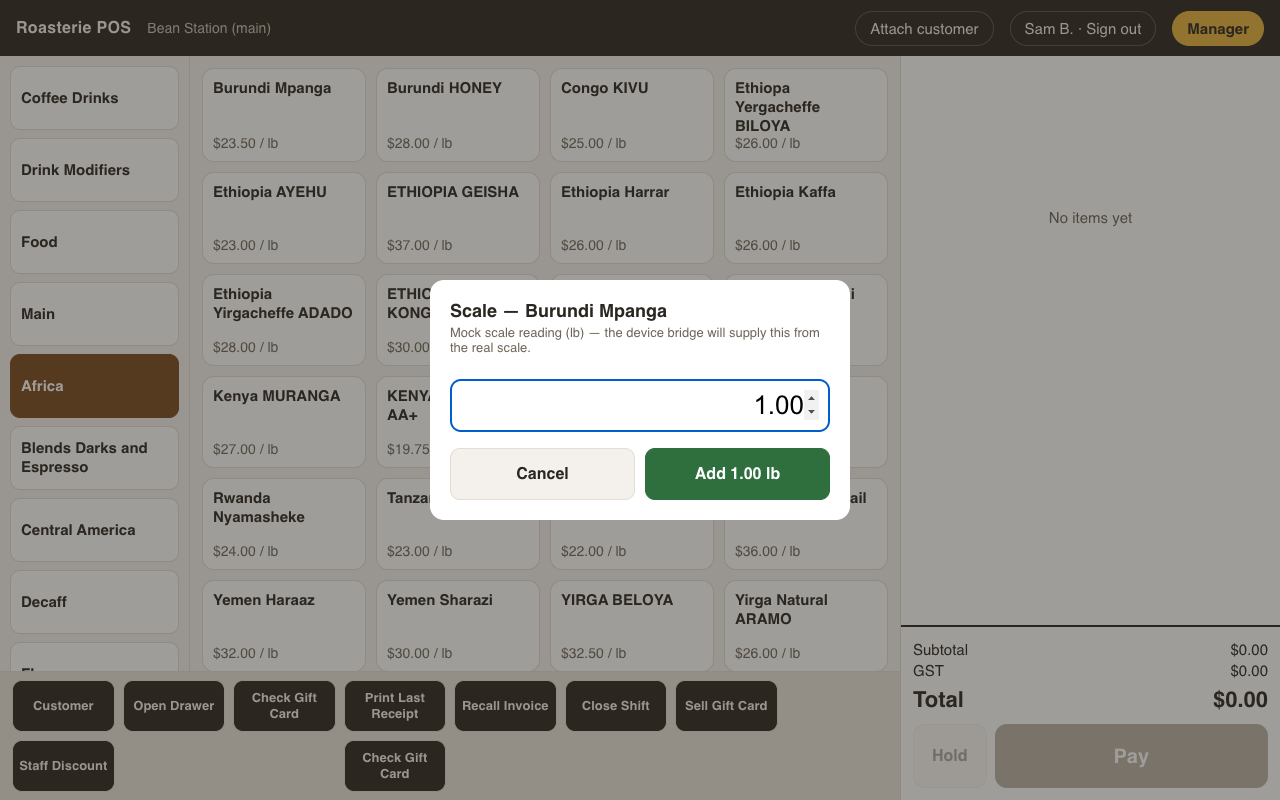
- Tap a retail bean → the ticket gets a weighed line (weight × price per lb). Until the device bridge reads the real scale, a dialog stands in for it and takes the weight. Beans are tax-free.
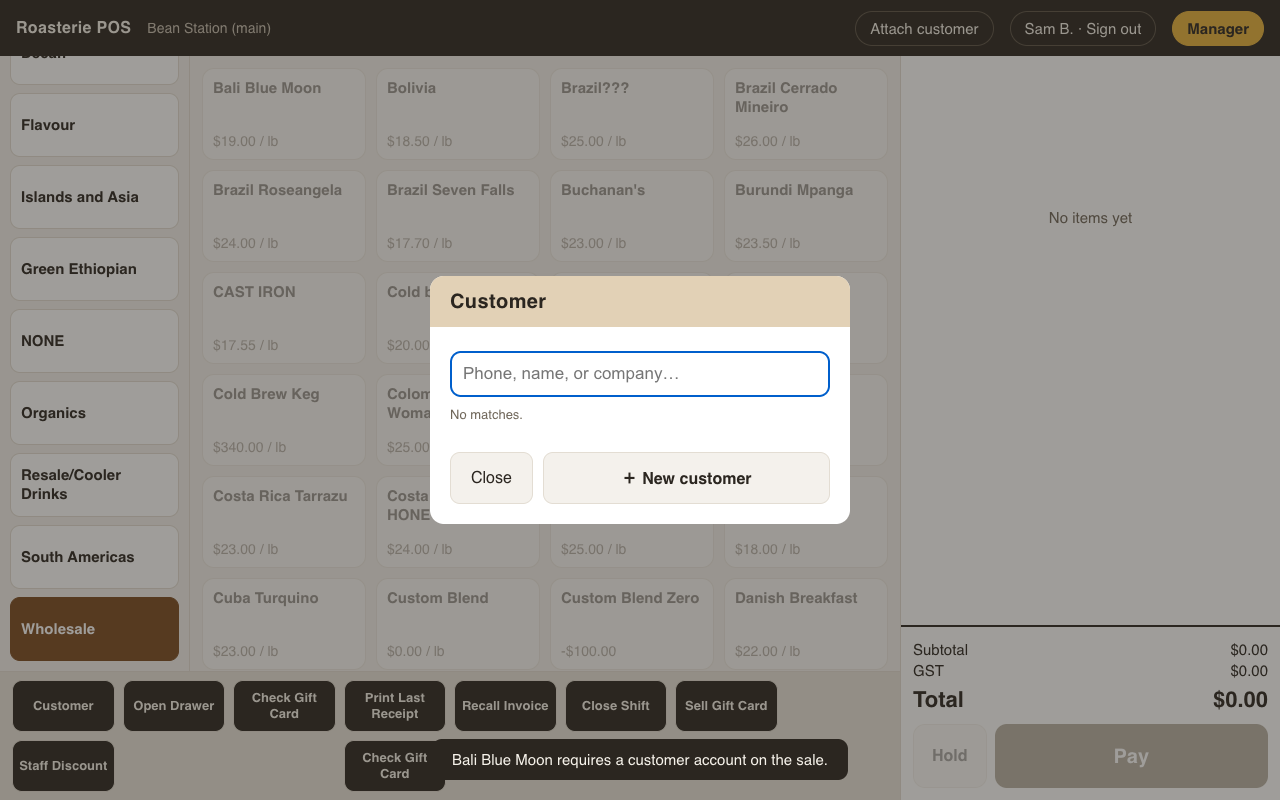
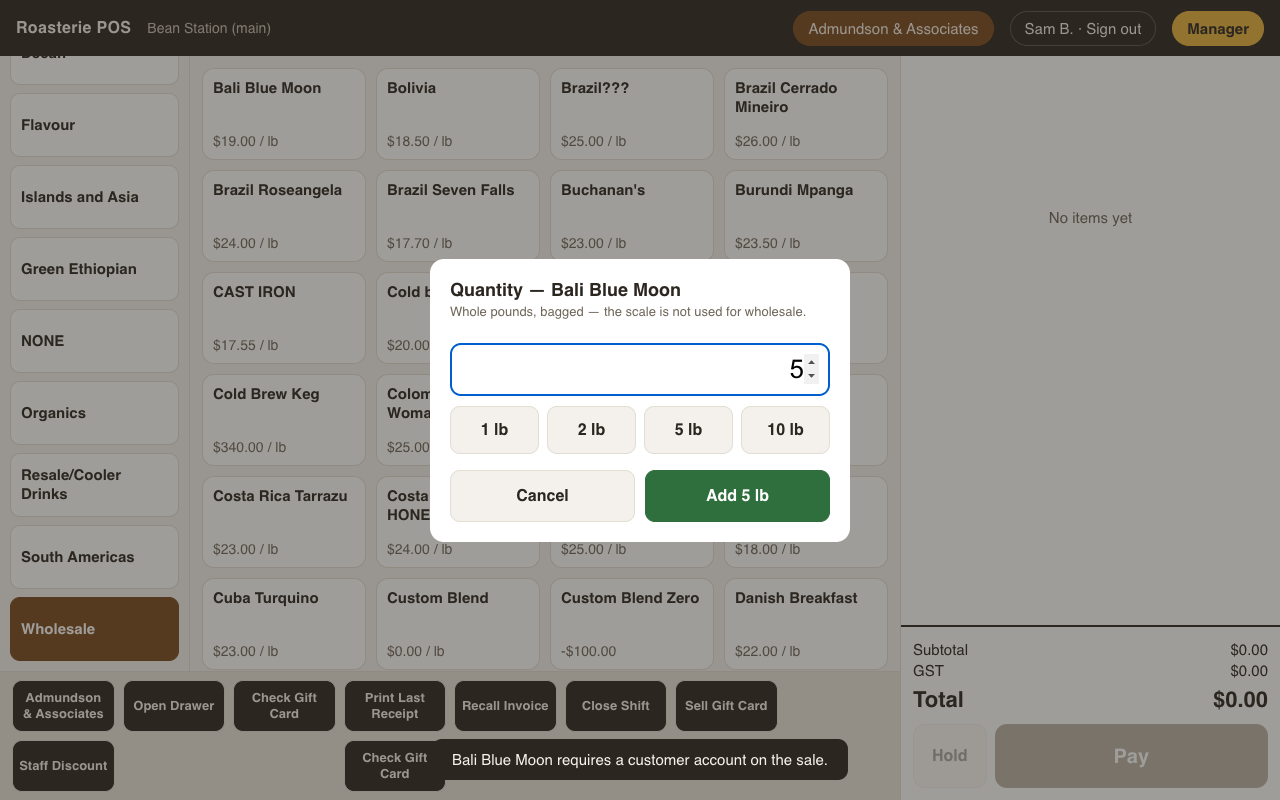
- Tap a wholesale bean → you're asked how many pounds (bagged in whole increments — the delicate scale isn't used). Wholesale can only be rung with a customer account attached; the button simply won't work without one, and wholesale and retail never mix on one ticket.
- Tap a modifier (extra shot, oat milk…) → it attaches to the product line you're ringing. A modifier is priced and tracked like a product, but it cannot be sold on its own — no parent line, no modifier.
The ticket
Each line shows the item, its quantity (count or weight), and its price as it was at the moment of sale. Modifiers sit indented under their parent line; a discount shows as its own red line. Tax (GST) is calculated per line, on the discounted price, from the product's own tax class.
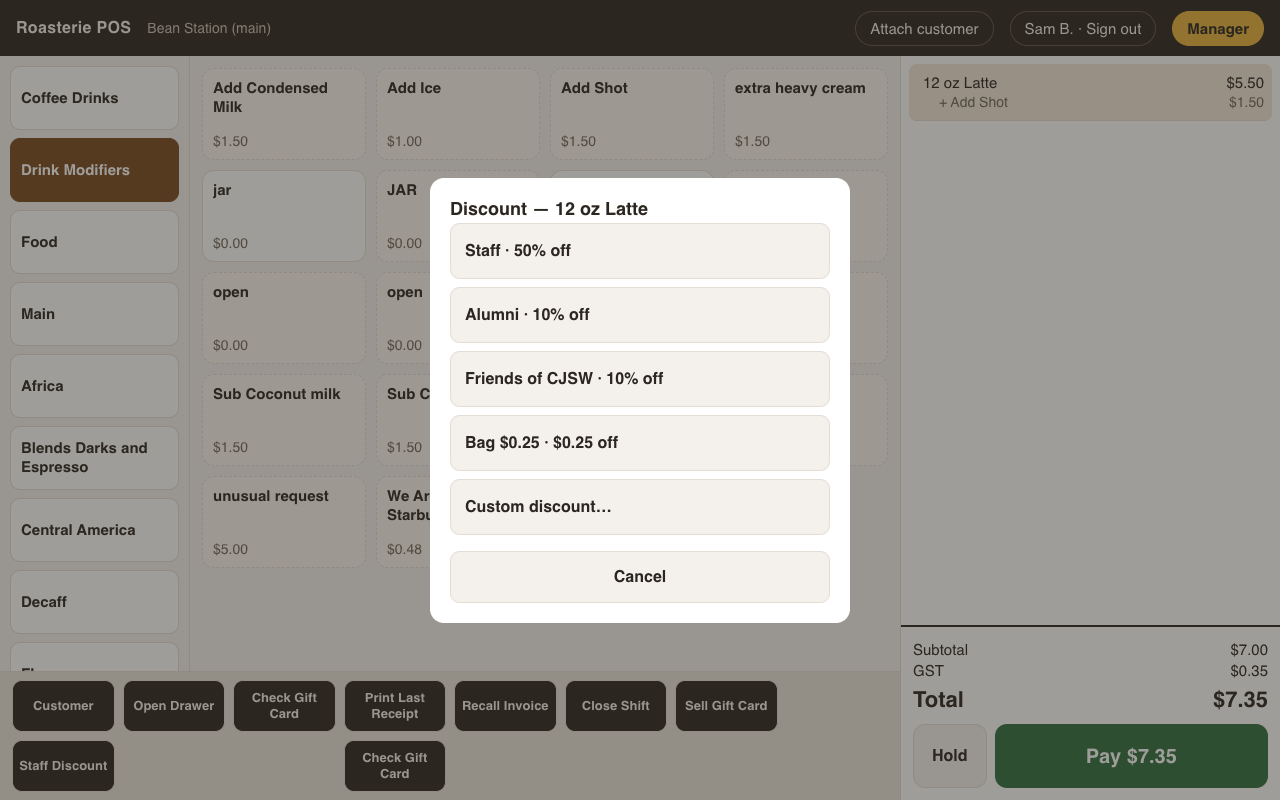
Tap a line to work on it. A menu pops up: add a modifier, discount the item (the named buttons — Staff, Alumni, Bag…), remove a modifier or discount, or delete the item.
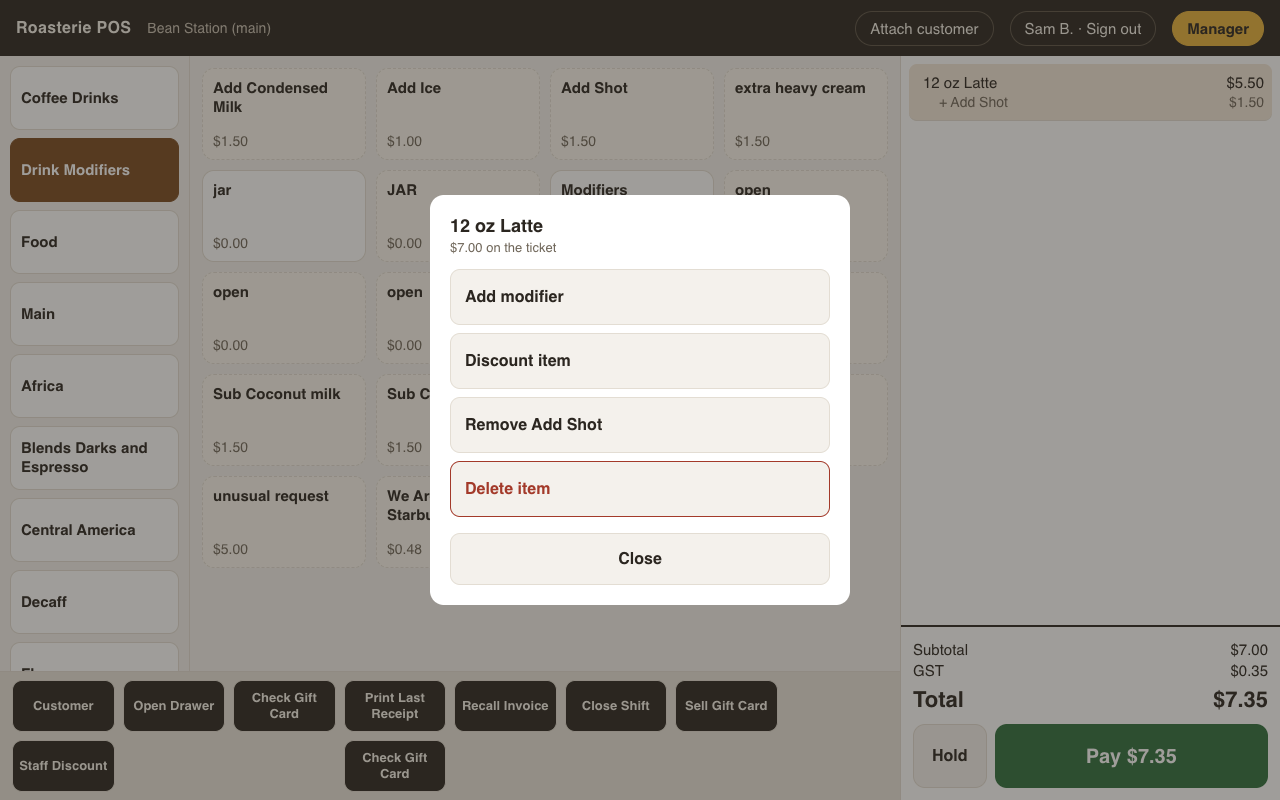 The menu is a plain list, so new actions (price change, quantity edit, comp…) are added without
redesigning the screen. Mistakes after payment are handled by voiding the sale — there
are no returns.
The menu is a plain list, so new actions (price change, quantity edit, comp…) are added without
redesigning the screen. Mistakes after payment are handled by voiding the sale — there
are no returns.
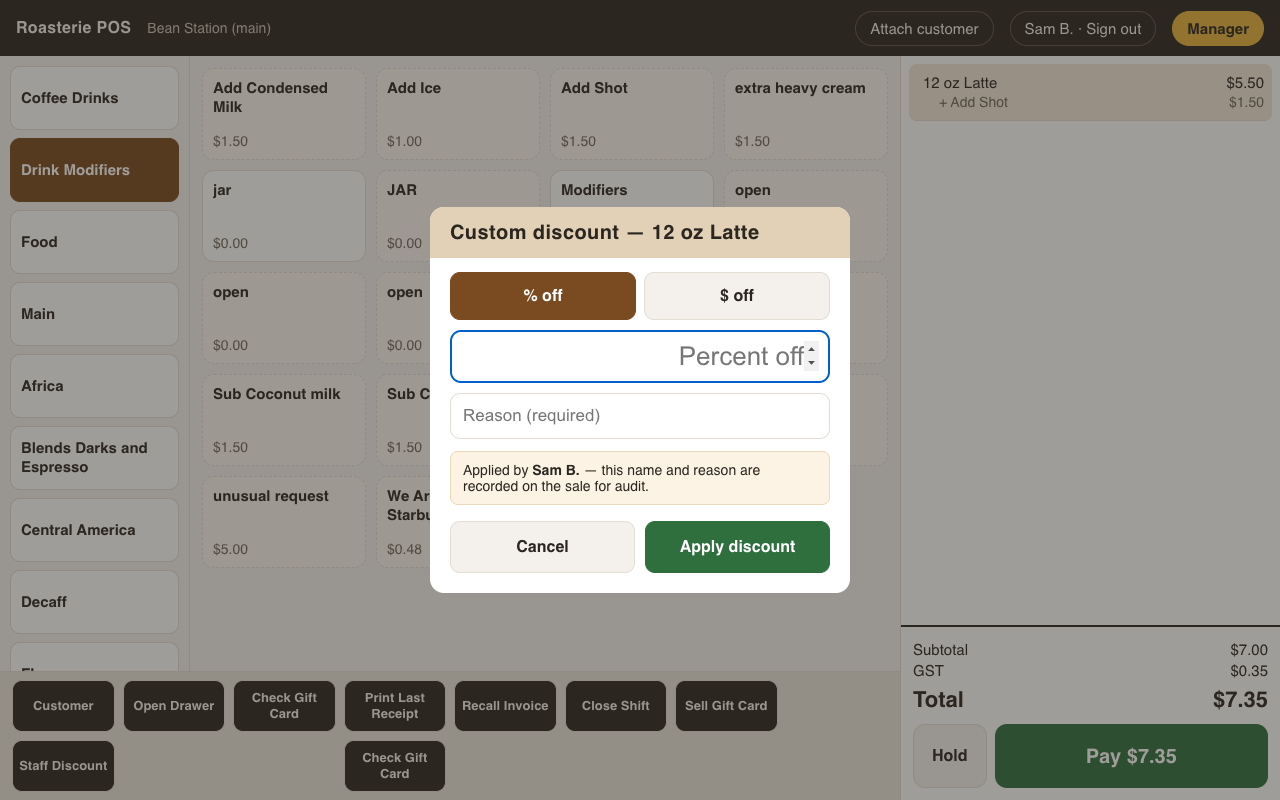
A custom discount (any % or $ off) is its own permission and requires a reason — the name and reason are recorded on the sale for audit:
Hold parks the ticket so the counter can serve the next person; Held Invoices (Manager → Cashier) recalls it — at any station, not just where it was held.
System buttons
The row along the bottom holds the station's function buttons — Customer (lookup by phone, tap, or name — or add someone new), Recall Invoice, Sell / Check Gift Card, Close Shift, Open Drawer, Print Last Receipt… Which buttons appear, their order and labels, is per-station data, edited in Setup → Stations & Layouts → Station Buttons (hardware-backed ones light up when the device bridge lands).